Custom Domain Email: Benefits, Drawbacks, and Setup Guide
Most people create their first email account with a free service, ending up with an address likename@gmail.com orname@yahoo.com. It’s easy, free, and more than enough for a lot of people. But if you want more control over your digital identity, you can use your own domain and create an address likehello@yourname.com,me@mydomain.com, or contact@yourbusiness.com. Email on a personal domain looks more professional, but appearance isn’t its biggest advantage. The real benefit is that your email address is no longer permanently tied to one company. You can switch the service that handles your email without having to give everyone a new address. Of course, more control also means more responsibility. You need to renew your domain, secure your registrar account, configure your DNS records correctly, and pay attention to your domain’s reputation. That might sound complicated at first, but it doesn’t have to be—especially if you use a reliable email provider and understand a few basic concepts.
What Is Email on a Personal Domain?
A domain is an internet address you register, such asyourname.com. Once you own a domain, you can use it for a website, blog, portfolio, email, or all of those at the same time. Your domain and your email hosting are not the same thing.
- Your domain is the name you register and usually pay for once a year.
- DNS is the system of records that tells the internet where to find your website and email service.
- Email hosting is the service that receives, stores, and sends your email.
For example, you can register your domain with one company, manage DNS through another, and host your email with a third. Everything will work together as long as your DNS records are set up correctly. This also means you don’t have to run your own email server. For most people, it makes much more sense to connect the domain to a provider that handles servers, spam filtering, security, storage, and email delivery.
The Biggest Advantage: The Address Belongs to You
When you use a free email service, you’re using another company’s domain. If your address isyourname@gmail.com, you control your account, but you don’t controlgmail.com. If you decide to leave that provider, you can’t take the same email address with you. You have to create a new one and notify friends, clients, banks, social networks, online stores, and every other service connected to the old address. With your own domain, it works differently. If you useme@yourname.com, you can host your email with one provider today and move to another one next year. You’ll need to update some DNS records and migrate your old messages, but your actual email address stays the same. It’s a lot like keeping your phone number when you switch carriers. People can still contact you the same way, even though the service behind the scenes has changed.
A More Professional Look
An address on your own domain usually looks more professional. This can be especially useful for:
- Freelancers
- Consultants
- Developers and designers
- Small business owners
- Writers and content creators
- People applying for jobs
- Families that want to share one domain
An address likecontact@yourbusiness.com makes it clear who’s behind the message. It also looks more polished on a business card, invoice, proposal, website, résumé, or social media profile. That said, owning a domain doesn’t automatically make someone trustworthy. Scammers can register domains too. A professional-looking address should be backed up by clear communication, strong security, and a good sending reputation.
You Can Create Multiple Addresses and Aliases
One of the most practical benefits of having your own domain is the ability to create different addresses, also known as aliases. For example: -me@yourname.com for personal messages -work@yourname.com for professional contacts -bills@yourname.com for bills and subscriptions -shopping@yourname.com for online stores -contact@yourname.com as a public address All of these addresses can deliver messages to the same inbox. This gives you better organization without forcing you to check five separate email accounts every day. The number of aliases you can create depends on your email plan. Some providers offer a large number of aliases at no extra cost, while others charge separately for every address or mailbox.
A Different Address for Every Service
You can also create a unique address for every website where you open an account. For example: -netflix@yourname.com -store@yourname.com -forum@yourname.com If one of those addresses starts receiving spam, you may be able to figure out where it was leaked or shared. You can then disable that specific alias without changing your main email address. This can be helpful for privacy, but it doesn’t make you anonymous. If every address uses the same recognizable domain, someone may still figure out that they all belong to the same person.
Should You Use a Catch-All Address?
A catch-all setup lets you receive messages sent to any address on your domain, even if you never created that specific address. This can be convenient when you want to make up new addresses on the spot. It can also save a message when someone makes a small typo before the@ symbol. The downside is that catch-all mailboxes can attract a lot of junk. Spammers often send messages to common or randomly generated addresses such asadmin@,info@, orsales@. For beginners, creating specific aliases is usually a better choice than enabling a catch-all for the entire domain.
The Freedom to Switch Email Providers
When you own your domain, you get to choose which company handles your email. You can pick a provider based on price, storage, privacy, security, apps, customer support, or any other feature that matters to you. If the provider raises its prices, removes an important feature, or simply stops working for you, you can move somewhere else while keeping the same public email address. The migration isn’t completely automatic, though. It usually involves these steps:
- Open an account with the new email provider.
- Add and verify your domain.
- Create the mailboxes and aliases you need.
- Copy your old messages, contacts, and calendars.
- Update your MX and other DNS records.
- Test both incoming and outgoing email.
- Wait before closing your old account.
It’s a good idea to keep the old service active for at least a few days after the switch. DNS changes don’t always reach every system at the same time, so this lowers the chance of losing messages during the transition.
What Are MX Records?
MX stands for Mail Exchange. These DNS records tell other email servers where they should deliver messages sent to your domain. Your email provider will give you the exact MX values you need. In most cases, you just copy those values into your domain’s DNS control panel. When you switch email providers, you update your MX records so that they point to the new provider’s servers. This is the key technical step that lets you change providers without changing your email address. A wrong MX record can temporarily stop incoming email. That’s why you shouldn’t randomly delete old records or guess at the correct values. Follow the instructions from your new provider carefully.
SPF, DKIM, and DMARC in Plain English
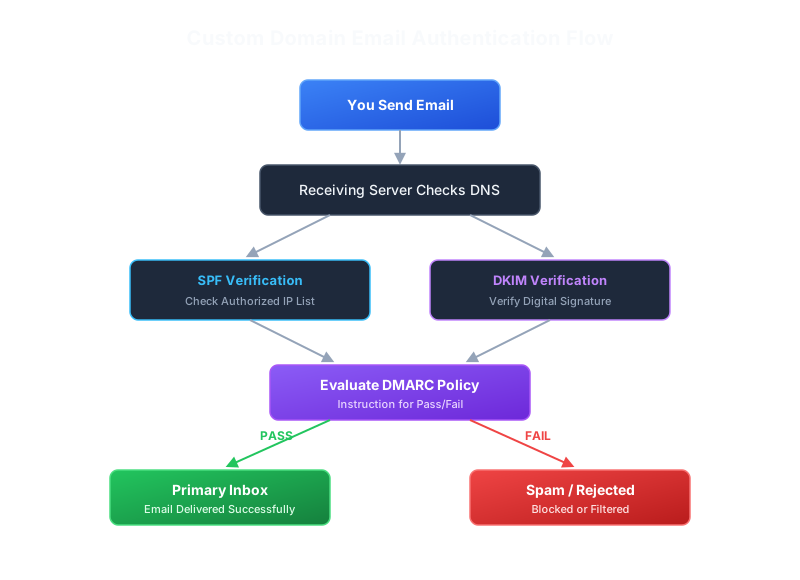
Modern email has a major problem: How can the receiving server know that a message claiming to come from your domain was actually authorized to use it? That’s where SPF, DKIM, and DMARC come in. These DNS-based systems help verify legitimate email and protect your domain from impersonation.
SPF: Who Is Allowed to Send Email?
SPF is a public list of servers and services that are allowed to send email on behalf of your domain. You can think of it as a guest list at the door. If an email comes from a server on the list, it passes one important security check. Things can get more complicated when you use several sending services. For example, your regular email might be sent through one provider, your website’s contact form through another, and your newsletter through a third. Every legitimate sender needs to be included in your SPF configuration. Your domain should have only one SPF record. If you create several separate SPF records, the check may return an error. All authorized services should be combined into one correctly formatted record. SPF also has technical limits, so you shouldn’t keep adding services without checking the final configuration.
DKIM: A Digital Signature for Your Messages
DKIM adds a cryptographic signature to your outgoing email. The receiving server can use a public key published in DNS to check whether that signature is valid. In simple terms, DKIM helps confirm two things:
- The message was signed by an authorized email system.
- Important parts of the message were not changed along the way.
Your email provider usually generates the DKIM information for you. You then add the provided DNS record and enable DKIM signing in the provider’s control panel, unless it’s already turned on automatically.
DMARC: Instructions for Failed Checks
DMARC connects SPF and DKIM to the domain people see in the message’s sender field. It also tells receiving email servers what to do when a message fails the required checks. The basic DMARC policies are: -p=none monitors results without asking servers to block messages. -p=quarantine asks servers to treat suspicious messages as spam. -p=reject asks servers to reject unauthorized messages. It’s not always a good idea to start with the strictest policy. If you have a legitimate sending service that isn’t configured properly, its messages could get rejected too. A safer approach is to start with monitoring, review the reports, fix any problems, and then move gradually toquarantine and eventuallyreject. DMARC reports can be pretty technical. Beginners may want to use a reporting service that turns the raw data into a dashboard that’s easier to understand.
Domain Reputation and Email Blacklists
Even if SPF, DKIM, and DMARC are set up correctly, there’s no guarantee that every message will land in the main inbox. Email providers look at many different signals, including:
- Your domain’s reputation
- The sending server’s IP reputation
- The content of your message
- How many messages you send
- How many people report your email as spam
- How many messages go to invalid addresses
- Your previous sending behavior
- Whether recipients open, ignore, delete, or reply to your messages
If you send normal personal or business email to real contacts, you probably won’t have major issues. The risk increases when you send large marketing campaigns, use purchased contact lists, or keep emailing people who don’t want to hear from you.
Your Domain and IP Address Are Not the Same Thing
When you use professional email hosting, you usually don’t control the IP address that sends your messages. Many customers may share the same infrastructure, while the provider manages its overall reputation. That’s why it’s important to choose a serious provider that responds quickly to spam and abuse. A very cheap host with poorly managed servers can have delivery problems even if you’ve done nothing wrong. If your domain or sending IP appears on a blacklist, the first step is figuring out why. Simply requesting removal often isn’t enough. You may need to stop the abuse, reset a compromised password, remove malware, or correct the way messages are being sent. Also, not every blacklist carries the same weight. Appearing on a small, unknown list doesn’t automatically mean Gmail, Outlook, and other major services will reject your messages.
A New Domain Has No Established Reputation
A brand-new domain doesn’t have a positive or negative history. That usually isn’t a problem for regular personal email, but it can matter if you immediately start sending a large number of messages. Registering a domain today and sending thousands of emails tomorrow is not a great idea. That kind of sudden activity can look suspicious. It’s better to build your reputation naturally:
- Start with a small number of real messages.
- Only email people who expect to hear from you.
- Never buy email lists.
- Remove invalid and inactive contacts.
- Make newsletter unsubscribing simple.
- Avoid constantly switching services and sending patterns.
For ordinary personal email, you generally don’t need a formal domain “warm-up” process. Just use the address normally and don’t behave like a mass sender.
You Have to Keep Renewing the Domain
One of the biggest risks isn’t complicated DNS—it’s forgetting to renew the domain. If your domain expires, your email may stop working. If someone else eventually registers it, that person could potentially receive new messages sent to your old addresses. This can become a serious security and privacy problem, especially if the domain is connected to banks, business services, or password reset systems. To reduce that risk:
- Turn on automatic renewal.
- Keep a valid payment card on file.
- Add a backup payment method if the registrar allows it.
- Pay attention to renewal notices.
- Register the domain for multiple years if you plan to keep it long-term.
- Use an unrelated backup email address for account recovery.
Automatic renewal is helpful, but it isn’t foolproof. A card can expire, a payment can fail, or a notice can end up in spam. It’s smart to check your domain’s expiration date a few times a year.
Protect Your Domain Registrar Account
If someone takes control of your registrar account, they may be able to change your DNS records and redirect your email to their own servers. That’s why protecting your domain account can be just as important as protecting the email account itself. Recommended security steps include:
- Use a long, unique password.
- Store your passwords in a password manager.
- Enable two-factor authentication.
- Use an authenticator app or security key instead of SMS when possible.
- Turn on domain transfer lock.
- Enable alerts for DNS and account changes.
- Keep your backup email address secure.
- Store recovery codes somewhere other than your phone or computer.
If your registrar supports DNSSEC, you can consider enabling it. DNSSEC helps protect the authenticity of DNS responses, but it needs to be handled carefully—especially when switching DNS providers. A broken DNSSEC setup can temporarily make your entire domain unreachable.
Secure the Email Account Too
Using your own domain doesn’t automatically make your email more secure. If you reuse a weak password or enter your login information on a fake website, an attacker can still take over the account. To protect your email:
- Use a unique password that you don’t use anywhere else.
- Enable two-factor authentication.
- Keep your devices and apps updated.
- Save your recovery codes in a safe place.
- Review active sessions and signed-in devices.
- Turn on alerts for suspicious logins.
Email is often the key to recovering all your other accounts. Someone who controls your email may be able to reset passwords for your social media accounts, cloud storage, shopping accounts, financial services, and much more.
Privacy: A Personal Domain Doesn’t Automatically Mean Private Email
A custom address shows that you control the domain, but it doesn’t guarantee that nobody else can read the message content. Your privacy level mostly depends on your email provider, its business model, where it stores data, how long it keeps information, and what kind of encryption it uses. Standard email is usually encrypted while traveling between servers, but that isn’t the same as complete end-to-end encryption. With end-to-end encryption, only the sender and recipient can read the message, assuming everything is configured properly. If privacy is especially important to you, check:
- Whether the provider supports custom domains
- Where it stores your data
- Whether it offers end-to-end encryption
- How encryption works when emailing people on other services
- Whether it supports standard apps through IMAP
- How easily you can export your messages if you leave
You should also know that domain registration details may sometimes be publicly available. Many registrars now provide privacy protection or hide this information based on local laws and policies, but you should check before registering.
Should You Run Your Own Email Server?
Technically, you can run your own email server. In practice, it’s not a great idea for most people. Self-hosting email requires:
- Correct DNS configuration
- A static IP address with a good reputation
- A proper PTR, or reverse DNS, record
- Regular software maintenance
- Security updates
- Spam and attack protection
- Monitoring of outgoing mail queues
- Reliable backups
- Uptime monitoring
- Troubleshooting problems with major email providers
Your server can be technically perfect and still have messages land in spam. Large providers don’t just check whether your setup works. They also look at your server’s history, reputation, sending volume, and behavior. Running a mail server can be a fun learning project. For your main personal or business email, though, a reliable hosted provider is usually safer and much easier to manage.
How Much Does It Cost?
The total cost usually includes at least two things:
- Annual domain registration
- Email hosting
The price of a domain depends on the extension, registrar, and any promotional offers. Pay attention to the renewal price, not just the first-year discount. Some domains are cheap when you register them but much more expensive later. Email hosting may be included in another service or charged monthly for each user. The price can depend on:
- Mailbox storage
- Number of users and mailboxes
- Number of aliases
- Custom-domain support
- Calendars and contacts
- Mobile and desktop apps
- Spam protection
- Advanced security features
- Customer support
For one person, the cost is often pretty reasonable, but a free email account will almost always be cheaper. What you’re really paying for is control, portability, and a professional identity.
Backups and Data Export
It’s not a good idea to assume that your email provider is also your permanent backup. You could accidentally delete a message, your account could be compromised, or the service could change its rules or shut down a feature. Before picking a provider, check whether you can export:
- All email messages
- Contacts
- Calendars
- Filters and rules
- Your list of aliases
IMAP can make it easier to copy messages between services, but it doesn’t always move every setting. Contacts and calendars often need to be exported separately. If you have important business correspondence, it may be worth using a separate archiving system or making periodic local backups.
Choose a Domain You Can Keep for Years
A personal email domain should be something you can comfortably use for a long time. If you choose a name tied to your current job, a temporary nickname, or a short-lived project, it may stop making sense later. Good options for personal email often include:
- Your first and last name
- A recognizable abbreviation
- A neutral family name
- A short name that isn’t tied to one stage of your life
The domain should be easy to say and spell. If you have to explain or spell it out every time, people are more likely to type your address incorrectly. Try to avoid unnecessary numbers, hyphens, and confusing combinations of letters. You should also check how the words look when they’re written together without spaces.
Pros and Cons at a Glance
| Area | Advantages | Disadvantages |
|---|---|---|
| Control | You control the domain and its addresses | You’re responsible for renewal and protection |
| Provider switching | You keep the same email address | Migration requires planning |
| Professional image | The address looks more polished and recognizable | It doesn’t automatically create trust |
| Aliases | They make organization and account separation easier | Some providers charge extra for them |
| Security | You can use SPF, DKIM, and DMARC | Bad configuration can block legitimate email |
| Reputation | You build an identity around your own domain | You have to watch for spam and abuse |
| Privacy | You can choose a provider that matches your needs | A personal domain doesn’t automatically encrypt email |
| Cost | You pay for long-term control | Domain registration and hosting are recurring costs |
| Independence | You aren’t permanently tied to one company | An expired domain can shut down your email |
How to Get Started Without Overcomplicating It
For most beginners, the process can be pretty straightforward.
- Choose a short domain you’ll still want to use years from now.
- Register it with a reputable registrar.
- Enable automatic renewal and two-factor authentication.
- Choose an email provider that supports custom domains.
- Add the required MX, SPF, DKIM, and DMARC records.
- Create your main address and only the aliases you actually need.
- Send test messages to accounts at several major email services.
- Confirm that messages arrive and pass authentication checks.
- Save your recovery codes and any information needed for migration.
- Occasionally review your domain renewal, DNS records, and account security.
Don’t make up your own SPF or DKIM values. Your email provider should give you the exact records to add to your DNS settings. If you use several different services to send email, the setup needs to be checked more carefully.
Is a Personal Email Domain Worth It?
If you only use email occasionally and you’re happy with a free address, you probably don’t need your own domain. Free email services are easier because someone else handles almost all the technical details. A personal domain makes more sense if you want:
- An email address you can keep long-term
- The freedom to switch providers
- A more professional online identity
- Multiple aliases for different purposes
- More control over your digital brand
- A domain that can be shared with your family or team
The biggest benefit isn’t just that the address looks better. The real benefit is independence. You can switch providers, replace your apps, and move your old messages. As long as you still control the domain, your email address stays the same. On the other hand, you need to treat your domain like an important digital asset. You have to renew it, protect your registrar account, set up email authentication correctly, and be careful about how you use it. For most people who want email on their own domain, the best setup is pretty simple: You own and control the domain, while a reliable provider manages the email infrastructure. That gives you control over your address without the daily headaches of running your own mail server.